Move wallpapers to Duo
Moving from iPhone to iPhone Duo? Bring your wallpapers properly
Your old iPhone wallpapers will transfer to the Duo in seconds — and then look wrong. The old phone was tall and narrow; the Duo's inner screen is wide. Here is how to move your collection across, reframe what is worth keeping, and let go of the rest.
Why your old wallpapers will look wrong
The first surprise of moving to the iPhone Duo is not the fold. It is the wallpaper. On your old iPhone, the screen was a tall portrait rectangle, roughly 0.46 : 1 in the hand, and your wallpapers were tall portrait images to match. On the Duo, the inner display is 2670 × 1878 — a wide landscape screen at 1.42 : 1 — and the cover is 1398 × 2034, a tall portrait screen. iOS still sets one wallpaper and crops both screens from it, so a portrait image that filled your old phone has to be forced into a wide frame it was never drawn for. The result is the same on every old wallpaper: the inner display shows a horizontal band cut out of the middle of your picture, enlarged, and the cover shows a close-up of the centre. A photo of your family standing in a row becomes two people in the middle. A sunset with the sun near the top becomes a strip of sky. A wallpaper with text across the middle gets its words cut in half by the fold.
This is not a defect in the transfer, and it is not something a setting will fix. The image itself is the wrong shape, and no transfer method can change that — AirDrop, iCloud, a cable or a backup all move the same pixels. What changes is what you do with the pixels once they arrive. Some old wallpapers can be saved by re-cropping them wide. Some can be saved by using them differently, on the Lock Screen instead of the Home Screen, or on the cover instead of the inner display. And some cannot be saved at all, because the thing that made them good — a tall composition, a full group, a vertical panorama — is exactly what the wide screen removes. The honest work of migrating is sorting your collection into those three groups, and this guide walks through each one.
Before you start, it helps to know the target. The Duo wants a landscape master of 2892 × 2034, a ratio of 1.42 : 1, with the subject inside the central 48% of the frame so the cover shows it. That is the shape every design on this site is drawn in, and it is the shape to aim for when you re-crop an old favourite. The full numbers are in the size guide. Keep that target in mind while you transfer, and the sorting decisions below become much easier.
| Old wallpaper type | What happens on the Duo | Verdict |
|---|---|---|
| Portrait photo, subject in the middle | Inner screen shows a band of the middle; cover shows the subject, large | Re-crop it wide — usually worth keeping |
| Portrait photo, subject at the top or bottom | Subject is cropped away on the inner display | Hard to save — keep it as a photo, not a wallpaper |
| Group photo, people in a row | Only the middle two or three people survive the crop | Let it go, or use it on the cover only in spirit — it will not work open |
| Flat colour or gradient | Looks the same on any screen, any shape | Transfers perfectly — keep it |
| Wallpaper with text or a logo | Text across the middle is split by the fold | Retire it, or re-make it wide with the text in the centre |
How to transfer your wallpapers
There is no special wallpaper migration tool for the iPhone Duo, and you should be suspicious of any app or website that claims to offer one. What moves your wallpapers is the same set of ordinary iOS transfer methods that move your photos, because on iOS a wallpaper is just an image in your library until you set it. If you set up the Duo by restoring from a backup of your old iPhone — through iCloud Backup or a computer backup — your photos, including the images you used as wallpapers, arrive with the restore. They will be in your Photos library, in the same albums, and you can set any of them as a wallpaper from there. The restore does not carry the wallpaper setting itself across in a useful way, because the setting was for a different screen shape; expect to re-set your wallpaper by hand on the new phone, even if the image arrived safely.
If you set the Duo up as a new phone instead of restoring, the fastest way to move a handful of favourites is AirDrop. Open the image in Photos on your old iPhone, tap Share, tap AirDrop, and tap the Duo. The full-resolution file arrives in Photos on the Duo within seconds, and you can set it from there. AirDrop works between iPhones signed into the same Apple Account or within range of each other, and it does not compress the image the way sending it through a message thread can — which matters, because a compressed copy will look softer on the big inner display. For a larger collection, the Files app is the better tool: save the images into a folder in iCloud Drive on the old phone, and the same folder appears on the Duo. A folder called Wallpapers in iCloud Drive, with the original files in it, is the simplest long-term home for a collection you want to keep across phones.
Two things to avoid. First, do not move wallpapers by sending them to yourself in Messages or an email. Messaging apps compress images, and a compressed copy of a wallpaper that was already marginal on resolution will look noticeably soft on the Duo's inner display. Second, do not move them by taking a screenshot of the old phone's Lock Screen. A screenshot captures the clock, the notifications and the cropped wallpaper together, and it is smaller than the original image — it is a picture of a wallpaper, not a wallpaper. If the original image is gone and the screenshot is all you have, it is better to treat that design as lost and find or remake it than to set a screenshot and wonder why it looks blurry.
Re-cropping the keepers for the wide screen
Once your favourites are on the Duo, the real work starts: re-cropping them for a screen that is wider than it is tall. Open the image in Photos, tap Edit, tap the crop tool, and choose a wide landscape frame. The goal is a picture that is about 1.42 times as wide as it is tall, with the subject inside the middle 48% of the frame. That middle band is what the cover shows when the phone is folded, and it is also what the inner portrait view shows, so a subject that sits in the middle band survives every view the phone can show. A subject at the edge will look fine when the phone is open and disappear when it is folded — which is the single most common disappointment after a migration, and the one this crop is designed to prevent.

Some photos re-crop easily. A single person in the middle of the frame, a pet sitting centrally, a building with sky around it — these lose their top and bottom and keep everything that matters. Some do not. A group photo in a row loses people at both ends, and no crop can bring them back. A tall building loses its top or its base. A vertical panorama of a waterfall loses the waterfall. For those, the honest answer is that the photo was composed for a tall screen and it belongs on a tall screen — which, on the Duo, means it can still work as a memory in your Photos library, but not as a wallpaper. It is better to keep five wallpapers that work than twenty that almost work, because the ones that almost work are the ones you will notice every time you fold the phone.
There is a middle option for photos that are close but not quite right: use them as a Lock Screen only, and put something calmer on the Home Screen. The Lock Screen is seen for a few seconds at a time, so a bold, imperfectly cropped photo is forgivable there in a way it is not behind your apps all day. When you add a wallpaper, choose Customize Home Screen instead of Set as Wallpaper Pair, and pick a blur, a colour or a different photo for the Home Screen. That split is the one genuine two-wallpaper setting iOS offers, and it is the right tool for a migrated photo that you love but cannot quite make fit both screens.
Live Photos, and what else does not carry over
Live Photos transfer with your library like any other photo, and they behave on the Duo the way they behave on any iPhone: on the Lock Screen of a supported model, pressing and holding the screen plays the short motion and sound. They do not play on the Home Screen, and they are not video wallpapers — the motion lasts a couple of seconds and then the image is still again. If your old phone had a Live Photo as its wallpaper, it will still be a Live Photo after the transfer, but check the framing after you set it: the same wide-screen crop applies, and a Live Photo whose motion depends on something at the edge of the frame will lose that motion to the crop. The Live Photo guide covers this in full.
Two other things do not carry over cleanly. The first is wallpaper pairs from a normal iPhone where the Lock Screen and Home Screen were different photos: the pair setting transfers in spirit, but the crops will be wrong on the Duo, so re-set both images by hand. The second is any wallpaper that came from an app with its own library rather than from your Photos — those images live inside the app, not in your library, and they will not be in the backup. If a wallpaper you love came from an app, save the original image to Photos on the old phone before you switch, while the app is still there to save from. Once the old phone is wiped, an image that only ever lived inside an app is gone.
Starting fresh: when to stop migrating and pick new designs
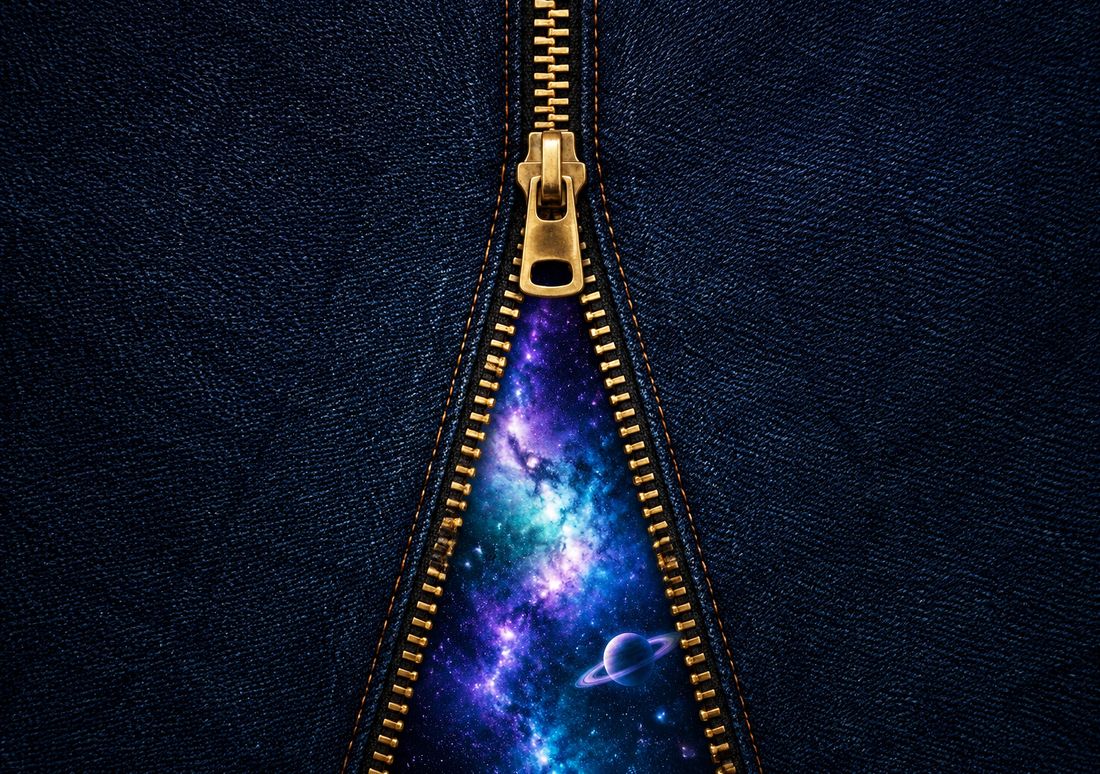
There comes a point in every migration where the sensible move is to stop rescuing old wallpapers and pick new ones drawn for the new phone. That point is usually sooner than people expect. The Duo is not a bigger version of your old iPhone; it is a different shape, with a fold down the middle, and designs drawn for that shape will look better on it than any re-cropped photo ever will. The designs on this site are drawn as 2892 × 2034 landscape masters with the subject in the central strip, the top kept calm for the clock, and the fold treated as part of the composition rather than an obstacle. Unzipped Galaxy puts a zipper down the crease and opens it onto a cosmos. Butterfly Symmetry puts the butterfly's body on the hinge, so the cover shows a butterfly portrait and the open phone shows the whole insect.
A practical way to decide is to keep three old favourites — the ones that re-crop cleanly and still make you smile — and fill the rest of your rotation with designs made for the Duo. Put the old favourites in a Photo Shuffle or link them to a Focus, so they still appear, and let the new designs carry the everyday load. That way the migration honours the photos that matter without asking a tall portrait image to do a wide landscape job it was never made for. And keep the originals: save them in a Wallpapers folder in iCloud Drive, at full resolution, so that the next time you switch phones, the collection moves with you again — and this time, the keepers will already be wide.
Questions
| Will my old iPhone wallpapers transfer to the iPhone Duo? | Yes, the images transfer — through a backup restore, AirDrop or iCloud Drive — but they will not look the same. Old iPhone wallpapers are tall portraits, and the Duo's inner screen is wide landscape, so they get cropped or stretched. Expect to re-set and re-crop them by hand. |
|---|---|
| What is the best way to move wallpapers to a new iPhone Duo? | AirDrop for a handful of favourites, or a Wallpapers folder in iCloud Drive for a whole collection. Both move the full-resolution file. Avoid sending wallpapers through Messages, which compresses them, and never use a screenshot of the old Lock Screen. |
| Can I fix a portrait wallpaper so it fits the Duo? | Often, yes: crop it wide in the Photos app to about 1.42 times as wide as it is tall, keeping the subject in the middle 48% so the cover still shows it. You will lose the top and bottom, and group photos usually cannot be saved this way. |
| Do Live Photos work as wallpapers on the iPhone Duo? | Yes, like on any iPhone: press and hold the Lock Screen on a supported model and the short motion plays. They do not play on the Home Screen, and the same wide-screen crop applies, so check the framing after you set one. |
| Is there an official tool to migrate wallpapers to the iPhone Duo? | No, there is no official wallpaper migration tool that we know of. Wallpapers are ordinary images, so they move with the same methods as your photos — backup restore, AirDrop or iCloud Drive — and the wallpaper itself has to be re-set on the new phone. |
More guides: Wallpaper size guide · How to set a wallpaper · Different wallpaper per screen · Blurry wallpaper fix · On iPad, Mac & iPhone · Crease care · Best wallpapers · Lock & Home pairing · Dark & light mode · Holiday wallpapers · Live Photo wallpaper · Save & share wallpapers · Stretched wallpaper fix